Showing posts with label सफ्टवेयर. Show all posts

How to download a website using HTTrack

Unknown | 10:30 PM | 2comments

To download a site using HTTrack, follow these simple steps.
    HTTrack website copier
      how to use httrack copier
    • First you need to download HTTrack software. It’s a free tool and you can get it here.
    • After the software is downloaded, install it on your computer and launch the software.
    • You can see a window same as below. Here every website is treated as a New Project. Click on Next to continue.

    • A new window will appear asking for a project name and category. Enter them according to your wish. Here you can see Base path which is the location where you want to save your website. Click on Next to continue.
    • Here you have to enter the website address (URL) in the text area provided and you can use the Action option according to your requirement. In this case, just leave it as download website(s) and click on Next button.
    • Now another window appear, just click on Finish button and your download will be started.
    • Here you can see the status of your download. Wait until the website is downloaded to your computer. If you want, you can cancel the download by clicking on cancel button.
    • downloading status
    • Now click on View error log to check for errors. If you find any errors like duplicate of web pages then fix them manually. If you find more errors, then it’s better to download another copy of the website again by using HTTrack.
    • You can see your downloaded site by clicking on Browse Mirrored Website button. Click on  Finish button to download another website to your computer.check for errors in HTTrack
    • You can also open the website in another way. All you need to do is, just go to the Base path (here C:UsersajithMywebsites) i.e. the location where you’ve saved your website. There you can see index.html file. Just click on that file to open your downloaded website.
    • alltechtricks.in

How to Combine PDF Files in Android

Unknown | 7:52 PM | 3comments

The method is quite simple and easy and you just need to follow some simple ways that will be helpful. So follow the below ways to proceed.

Steps To Combine PDF Files in Android:

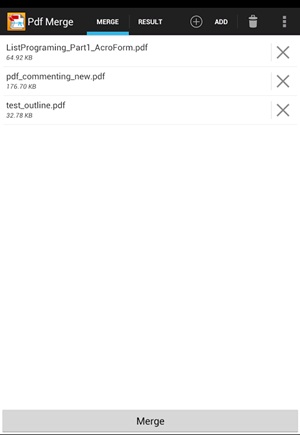
    Combine PDF Files in Android
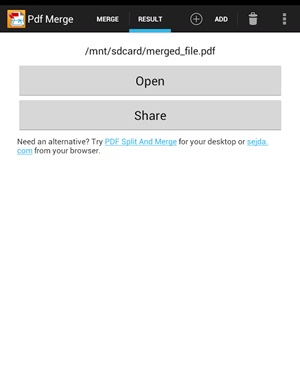
     Combine PDF Files in Android
  1.  First of all, in your Android device, you need to download and install the app Pdf  Merge  the app that is going to help you to merge pdf files.
  2. After installing the app, you will see the storage of your device and now you need to click on the merge tab there in the app.
  3. Now under merge section, you need to add the pdf files that you want to merge and you need to select them from your storage where they are actually located.
  4. After you added the files, simply merge them and execution process will start and within few moments merged pdf will be generated and you will see the pdf file.
  5. Now you can directly open the merged pdf output there.
  6. That’s it ! You are done, you have your merged documents with you.
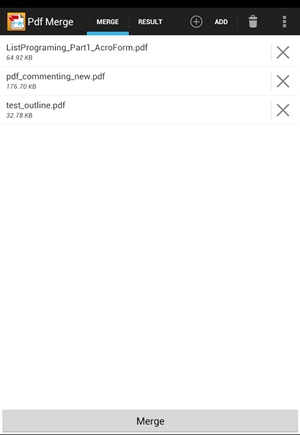
 Combine PDF Files in Android
So, this was the method through which you can easily combine multiple PDF files into one single file and hence access it as a regular PDF file. This method isn’t difficult at all as you might have got from the article and it could be performed within few minutes only. Now just go and use this method to make the joint project PDF files of your own to keep away from the resistance all these files used differently with so much difficulty!

6 Different Ways to Download Videos from YouTube to your PC and Mobile

kisan | 5:51 PM | 3comments

1. Add SS before youtube
This is one of the most popular method on the internet for downloading youtube videos on PC and mobile. To download videos, just need to add a “ss” before the “youtube” in your URL, turn it into “ssyoutube”. For example, the URL of https://www.youtube.com/watch?v=TmprPSZFBpk, now add a “ss”, the URL changed to https://www.ssyoutube.com/watch?v=TmprPSZFBpk. Then the browser will parse the URL and skip to a window like below:Download Youtube Video from Adding SS
Download Youtube Video from Adding SS
2. From VLC Media Player
We’ve discussed plenty of ways to download YouTube videos before. However, you have one option already installed on your computer. VLC lets you play and download YouTube videos right from its desktop interface. Here’s how:
    • Find a video on YouTube—like this one—and copy the URL from the address bar.
    • In VLC, head to Media > Open Network Stream.
    • Paste the YouTube link in the box and click Play.
    • Under Tools, click Codec Information.
    • In the box that says Location, right-click the block of text and click Select All. Copy this text to your clipboard.
    • Go back to your browser and paste the link in the address bar. This will open the source file directly on YouTube’s servers.
    • Right-click the video as it plays and select Save Video As.
You can also record clips from YouTube videos as they’re streaming in VLC by pressing the red Record button in the player itself. This isn’t as direct of a rip, but it’s handy if you need to grab a particular clip out of a long video.
Download  VLC : Click Here

3. Vidmate Android app

Vidmate Android app
Vidmate is one of the best-known applications currently available for downloading videos and songs from online services like Vimeo, Dailymotion, YouTube and lots more. Just download this app from below link. Install on your phone and you can download any youtube video with the help of this app.
Download  Vidmate : Click Here

Image result for tubemate
4. Tubemate Android app
Tubemate is one of the best-known applications currently available for downloading videos and songs from online services like Vimeo, Dailymotion, YouTube and lots more. Just download this app from below link. Install on your phone and you can download any youtube video with the help of this app.
Download  Vidmate : Click Here


How to Live Stream to Facebook Pages From PC or MAC

kisan | 5:15 PM | 0 comments

You could live stream to the facebook and for that, your profile is used but what if you wish to stream to the facebook pages that you manage or you are part of them? So, you want to live stream from the PC or Mac to any of your facebook pages just go and read the article to know about it.

Steps To Live Stream to Facebook Pages From PC or MAC
1.           The very first thing that you would need to know is that you should install up the OBS Studio software on your computer and not the previous version of the software named OBS Classic and if you do install the previous version you won’t be able to perform up the task of live streaming Facebook because it isn’t supported.

    2.       Now open up the Facebook, log in to your account and then go to the           page you want to live stream on. After reaching on the page click on the      “Publishing Tools” option from there which you could easily find upon           above of your screen.

 Live Stream to Facebook Pages From PC or Mac

 Live Stream to Facebook Pages From PC or Mac3. Select up the “Videos” option from the sidebar that appears after you have applied up to the above step. Next to that click on the button saying “Live” option and thereafter proceed for the further steps.

 Live Stream to Facebook Pages From PC or Mac4. You will now see that there comes above the pop-up which would be carrying up the Stream key, just copy that Key from there. Keep in mind that you correctly copy that key because this will be required while using up the OBS Studio. After copying up the Key press on the Next button.

 Live Stream to Facebook Pages From PC or Mac5. Launch the OBS Studio and then from there Click on the Settings, From there look for the Stream option in the sidebar that appears. Just paste up the Stream Key you just copied in the previous steps inside the box that appears on your screen. Select “Facebook Live” option under the Service tab and then click on the OK button.
 Live Stream to Facebook Pages From PC or Mac

 Live Stream to Facebook Pages From PC or Mac
6. After all that you would need to add up the sources to the OBS Studio like Webcam or any video placed inside any folder which would be live streamed. To do that just click on the “+” icon under the Sources box inside the software. From the List menu that appears just select up the Video Capture Device option and then name it, click on the OK button after that.


 Live Stream to Facebook Pages From PC or Mac7. In the next window that appears just select your Video Capture device you just named in the above step, and then after that click on the OK button! You would now see your video capture device’s input inside the OBS studio which would be Live Streamed to the Facebook Page, to begin up the streaming just click on the Start Streaming Button!

For OBS download : Click Here
Courtesy:  Different Online Media


Internet Download Manager Download for free

kisan | 9:53 AM | 0 comments

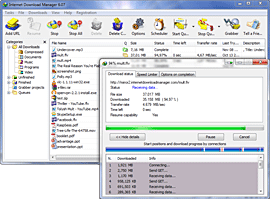
Internet Download Manager (IDM) is a tool to increase download speeds by up to 5 times, resume and schedule downloads. Comprehensive error recovery and resume capability will restart broken or interrupted downloads due to lost connections, network problems, computer shutdowns, or unexpected power outages. Simple graphic user interface makes IDM user friendly and easy to use.Internet Download Manager has a smart download logic accelerator that features intelligent dynamic file segmentation and safe multipart downloading technology to accelerate your downloads. Unlike other download managers and accelerators Internet Download Manager segments downloaded files dynamically during download process and reuses available connections without additional connect and login stages to achieve best acceleration performance.
Internet Download Manager supports proxy servers, ftp and http protocols, firewalls, redirects, cookies, authorization, MP3 audio and MPEG video content processing. IDM integrates seamlessly into Microsoft Internet Explorer, Netscape, MSN Explorer, AOL, Opera, Mozilla, Mozilla Firefox, Mozilla Firebird, Avant Browser, MyIE2, and all other popular browsers to automatically handle your downloads. You can also drag and drop files, or use Internet Download Manager from command line. Internet Download Manager can dial your modem at the set time, download the files you want, then hang up or even shut down your computer when it's done.
Other features include multilingual support, zip preview, download categories, scheduler pro, sounds on different events, HTTPS support, queue processor, html help and tutorial, enhanced virus protection on download completion, progressive downloading with quotas (useful for connections that use some kind of fair access policy or FAP like Direcway, Direct PC, Hughes, etc.), built-in download accelerator, and many others.
Version 6.15 adds Windows 8 compatibility, adds IDM download panel for web-players that can be used to download flash videos from sites like YouTube, MySpaceTV, and Google Videos. It also features complete Windows 7 and Vista support, YouTube grabber, redeveloped scheduler, and MMS protocol support. The new version also adds improved integration for IE 10 and IE based browsers, redesigned and enhanced download engine, the unique advanced integration into all latest browsers, improved toolbar, and a wealth of other improvements and new features.
Click Here for Download : INTERNET DOWNLOAD MANAGER
 
Support : Log Back | समाचार | Goto
Copyright © 2011. KISAN Infotainment...... - All Rights Reserved
Template Modify by KISAN Infotainment
Proudly powered by test